№ 10Photography
One roll at the launderette: 36 AI frames, then stop
Make an AI photo essay from one imaginary roll of 36 frames. Spend the last wash at a fictional launderette, then edit your roll down to six.
№ 11Design & typeHow-to
AI social media post design for a darkroom that now opens at 19:00. Use the cgfaces editor to change the time in both layouts before exporting.
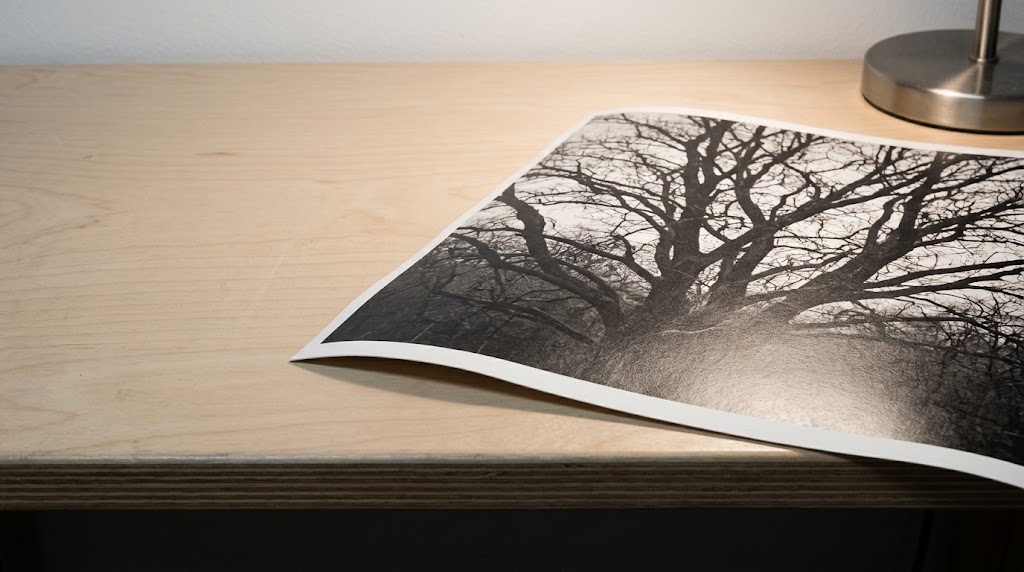
Picture a pale birch-ply bench in a community darkroom’s finishing room. The white wall is freshly painted and unmarked. An 8x10-inch fibre print runs partly out of frame. One stiff paper corner curls gently upwards. Beside it sits the opening time. You need that hour to agree on the square post and the Story.
For this fictional darkroom open night, the copy is short: “Darkroom open night” above “Friday”, with “Doors 18:00” on its own line. “Bring a print” sits beneath the time. Use these words for the exercise, then substitute approved event details when you make a real announcement.
We would give the two formats equal attention at review, even if the square is the one everyone comments on. Compose and save both at 18:00 before applying the change to “Doors 19:00”. The photograph stays in place through that revision; the job is to correct the hour in each layout and check both downloaded files.
We like the print running awkwardly into the edge here. It gives a spare notice something to look at without needing another decorative element. Ask for a clean bench in late-afternoon window light with clear space beside it. Leave the event wording for the editor’s separate text objects.
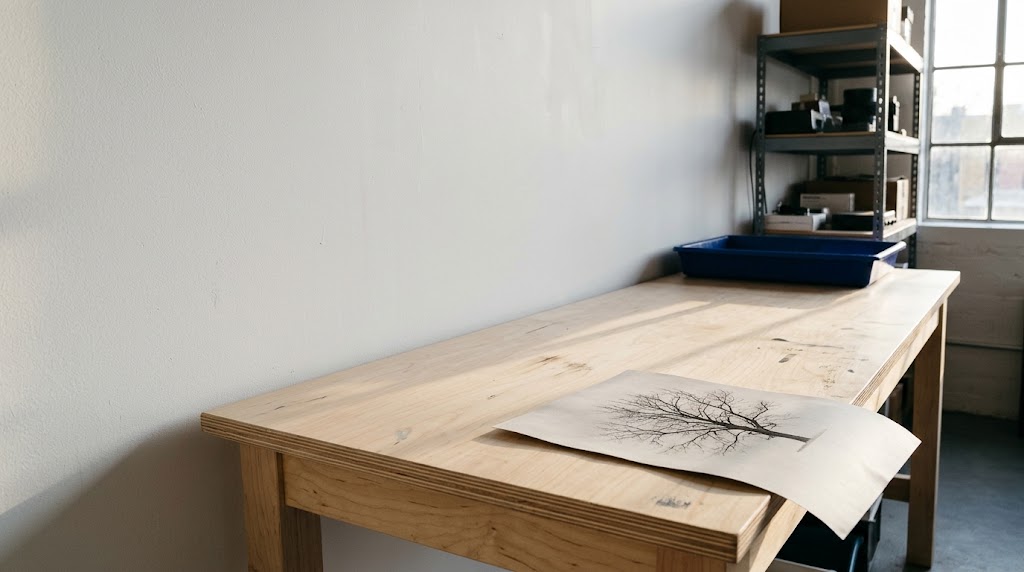
Documentary photograph. Wide shot of a dry 8x10-inch black-and-white fibre print of a bare tree lying on a pale birch-ply workbench in the finishing room of a contemporary community darkroom; the stiff paper curls gently upwards at one corner where it overhangs the bench edge, running awkwardly beyond the lower-right edge of the frame. Frame the bench at a slight angle, with a freshly painted, unmarked white wall filling the left half. A steel-framed window and steel shelving with a cobalt-blue tray sit at far right. Late-afternoon window light from the right casts long soft-edged shadows across the bench; natural pale wood and white, the blue tray the strongest colour. Nobody in the room. Everything clean and well kept. Unstyled, matter-of-fact mood. Nikon D850 with Nikkor 24-70mm f/2.8E ED VR at 35mm, f/5.6, 1/125 second.
Request a square source image for this prompt. The Studio link prefills the model and prompt; choose the image ratio separately before running it.
At the size you intend to use the photograph, you should still be able to follow the curled paper corner and see where the print meets the bench. A fused edge is a reason to reject the image, even if the lighting appeals. Look out for accidental lettering on the equipment too.
If you are unsure about the framing, try a direction first with FLUX.2 Klein 4B at 2 credits. Rough notes about the photograph can go through Prompt Crafter; keep the opening time on your copy sheet. The photorealistic prompt collection offers other starting points.
Choose one source for the pair before building either layout. The close-up and vertical alternatives below are useful if you want to give the picture a different share of the canvas.
Open the cgfaces editor. Use Add image to import your selected photograph. Select the canvas under Canvases, then open Size presets. In Social, choose Instagram square and press Apply size. This uses the editor’s 1080 × 1080 preset.
The square gives you room for a simple split: photograph on roughly the right half, event copy on the left. A warm off-white canvas gives the charcoal type a clear background. With the canvas selected, set that colour under Background. Adjust the division once you see how much room the heading needs.
Move or resize the photograph to fit, using the Crop control if an edge needs trimming. Keep the cut-off print visible. With a close view like the prompt below, a smaller inset leaves space for type on the off-white canvas. Request this alternative at 1:1 and inspect the paper edge for any merging with the wood.
Example image made with Google Nano Banana 2.1 from the prompt below.
Documentary photograph. Close-up of a dry 8x10-inch monochrome fibre print of a tree lying on a pale birch-ply bench in the finishing room of a contemporary community darkroom; the stiff paper curls gently upwards at one corner where it overhangs the smooth bench edge. The paper runs beyond the right and bottom frame edges; clear bench surface fills the left third. A freshly painted, unmarked white wall forms a narrow strip along the top edge. The foot of a small steel task lamp sits at the far upper-right edge. At dusk, this single shaded lamp lights the paper from the right and casts a soft shadow beneath its curled corner; pale wood and charcoal, the white paper the brightest area. Nobody in the room. The bench and lamp are clean and well kept. Unstyled working detail. Canon EOS R5 with RF 100mm f/2.8L Macro at f/8, 1/125 second.
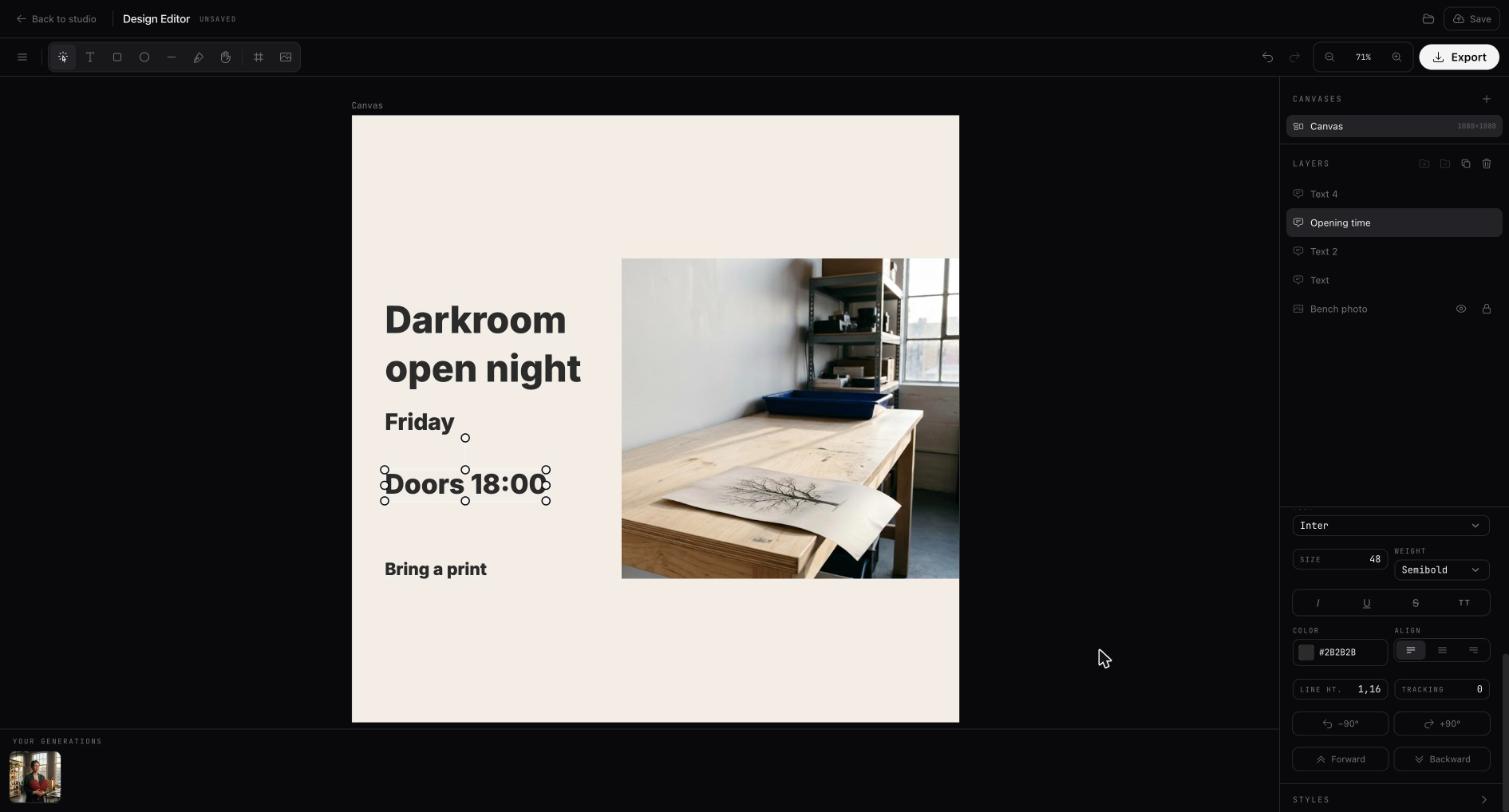
The hour deserves its own box because it is the piece of copy you are about to change. Choose Text and click in the left margin for the heading, then repeat for the other copy elements. The Text tool creates editable text objects, so “Doors 18:00” can be edited separately.
Restrained typography leaves room for the curled paper corner against the pale bench. Start with Inter in the Font menu and use Size and Weight to give the heading first place. The time needs enough presence to read without leaning into the screen. Set a dark charcoal under Color in the text controls.
In Layers, double-click the image layer’s name to call it “Bench photo”, then use Lock while you work on the copy. Rename the time layer “Opening time” so it is easy to find when the change arrives. Both actions are supported in the layer panel. Keep the day in its own box for positioning in the tall layout.
If the tall format leads your brief, the 9:16 prompt below puts more wall above the bench. Choose it before assembling the pair and use the same image in both layouts. Look for a bench that stays low in the frame and a wall free of invented lettering. If you have already chosen your square source, continue with that photograph.
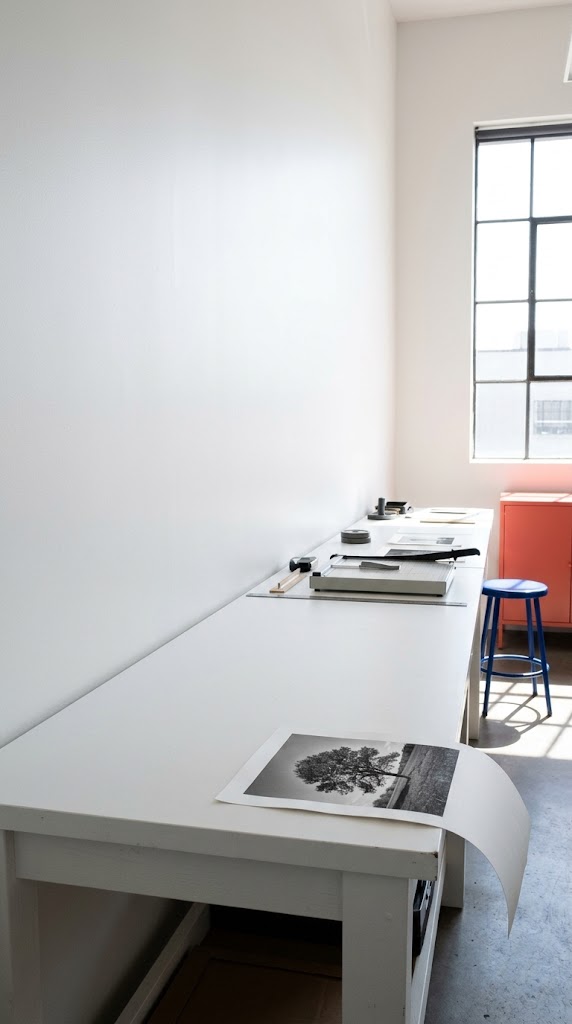
Documentary photograph. Wide shot in a vertical frame of a dry 8x10-inch black-and-white fibre print of a tree lying on a white bench in the finishing room of a contemporary community darkroom; the stiff paper curls gently upwards at one corner where it overhangs the bench edge. Frame the bench side-on in the lower third, with the print exiting the lower-right edge and a freshly painted, unmarked white wall above and to the left for type. A coral-red storage cabinet and a cobalt-blue stool sit at the far right beneath a steel-framed window. Clear midday sun through that window casts crisp shadows across the bench; natural bright colour, the coral cabinet the strongest accent. Nobody in the room. Everything contemporary and well kept. Matter-of-fact mood. Leica M11 with Summilux-M 35mm f/1.4 at f/8, 1/250 second.
Select the square under Canvases, then choose Menu → Edit → Duplicate. The selection matters: Duplicate acts on the selected object or canvas, so check that the copy includes the whole layout. Double-click the canvas names to call the original “Square” and the copy “Story”.
Select “Story”, open Size presets and choose Instagram story / Reel under Social. Press Apply size for the editor’s 1080 × 1920 preset. The canvas resize changes its dimensions without rearranging the objects. Move the copied elements yourself.
The tall layout needs its own spacing or the copy can look stranded above the photograph. Try the photograph in the lower half and the heading above. Keep the time near the heading, then put “Bring a print” below it in smaller type. Click the padlock beside the copied image layer before moving it. The curled paper corner should still have enough room to read as part of the picture.
You need a signed-in account with verified email to save designs. Choose Menu → File → Save design to save the editable document state containing both canvases. Open My designs and check that the design appears there before closing the editor.
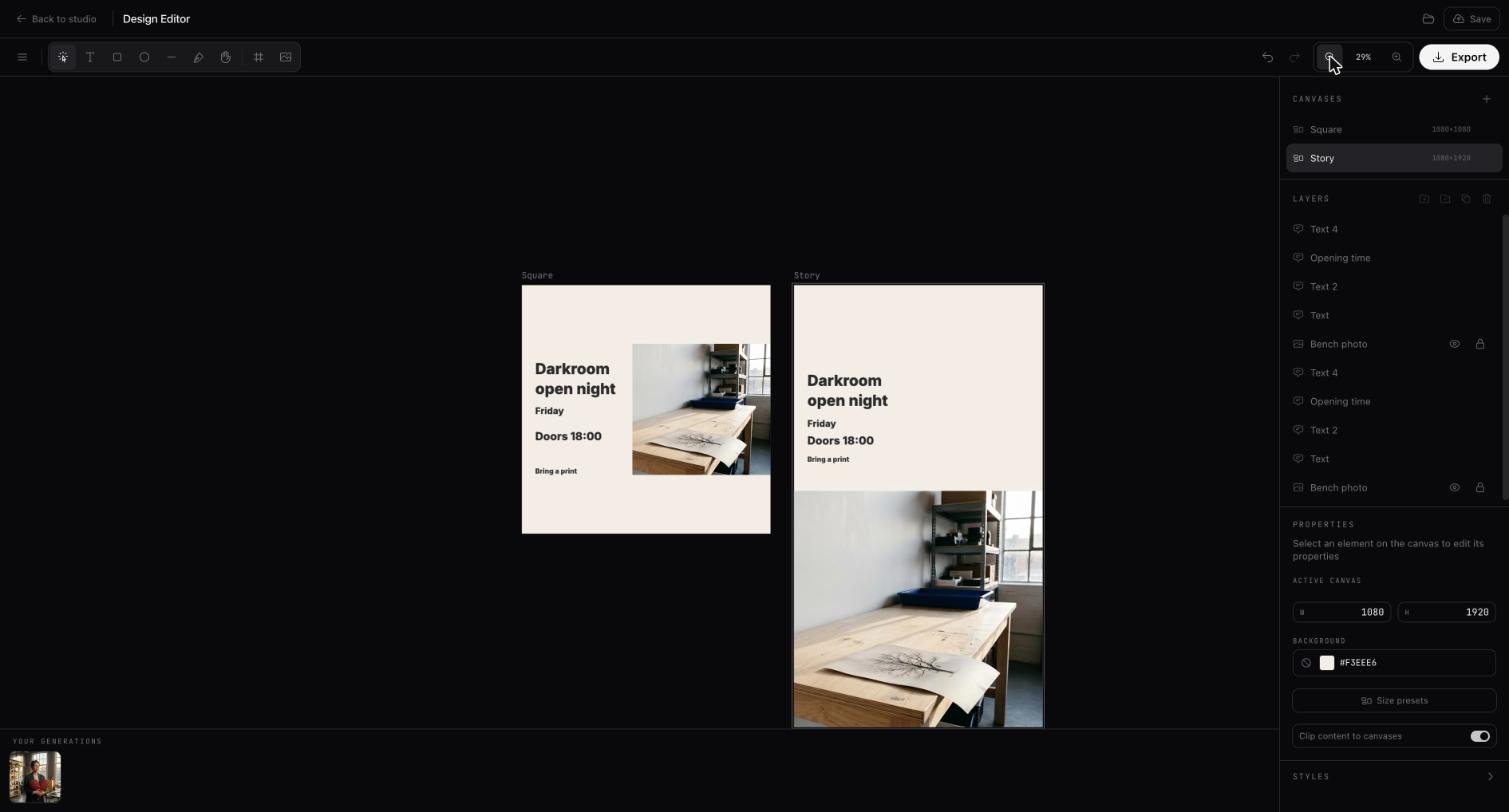
The opening moves to 19:00. From Menu, choose File, then My designs to reopen the saved design. Both canvases should contain the selected photograph and the original wording before you start the correction.
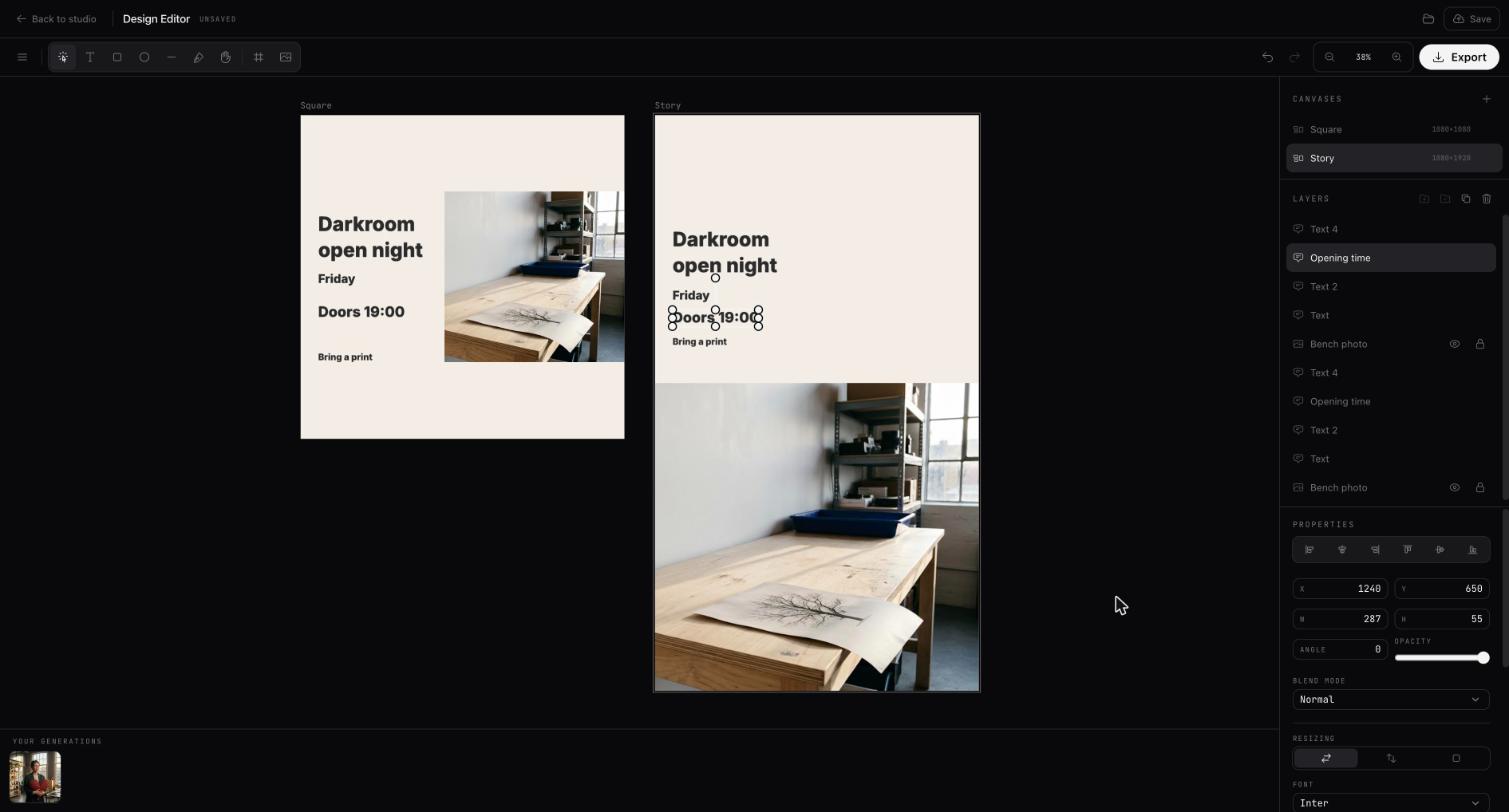
On “Square”, edit the time box to read “Doors 19:00”. Select “Story” and make the same correction there. The duplicated canvas contains independent copies of the text objects. Updating one opening time leaves the other for you to edit.
If you make paired formats often, Popcorn Editor is a standalone browser design editor separate from cgfaces. Its Find/Change (⌘/Ctrl+F) can search the whole document. Change All replaces “Doors 18:00” with “Doors 19:00” on every artboard in one pass. For this cgfaces design, edit each canvas by hand.
We would check the Story immediately after the square, while the correction is still in mind. Read each complete time line for wrapping or a digit touching the box edge, then compare the day against your approved copy. There is no need to revisit the photograph during this pass.
Choose Save design again after the corrections. Then open Export. In Export design, select both canvases. Choose PNG and set Scale to 1×. The export dialog shows the output dimensions and bundles multiple selected canvases into a ZIP. Use Download 2 files (ZIP).
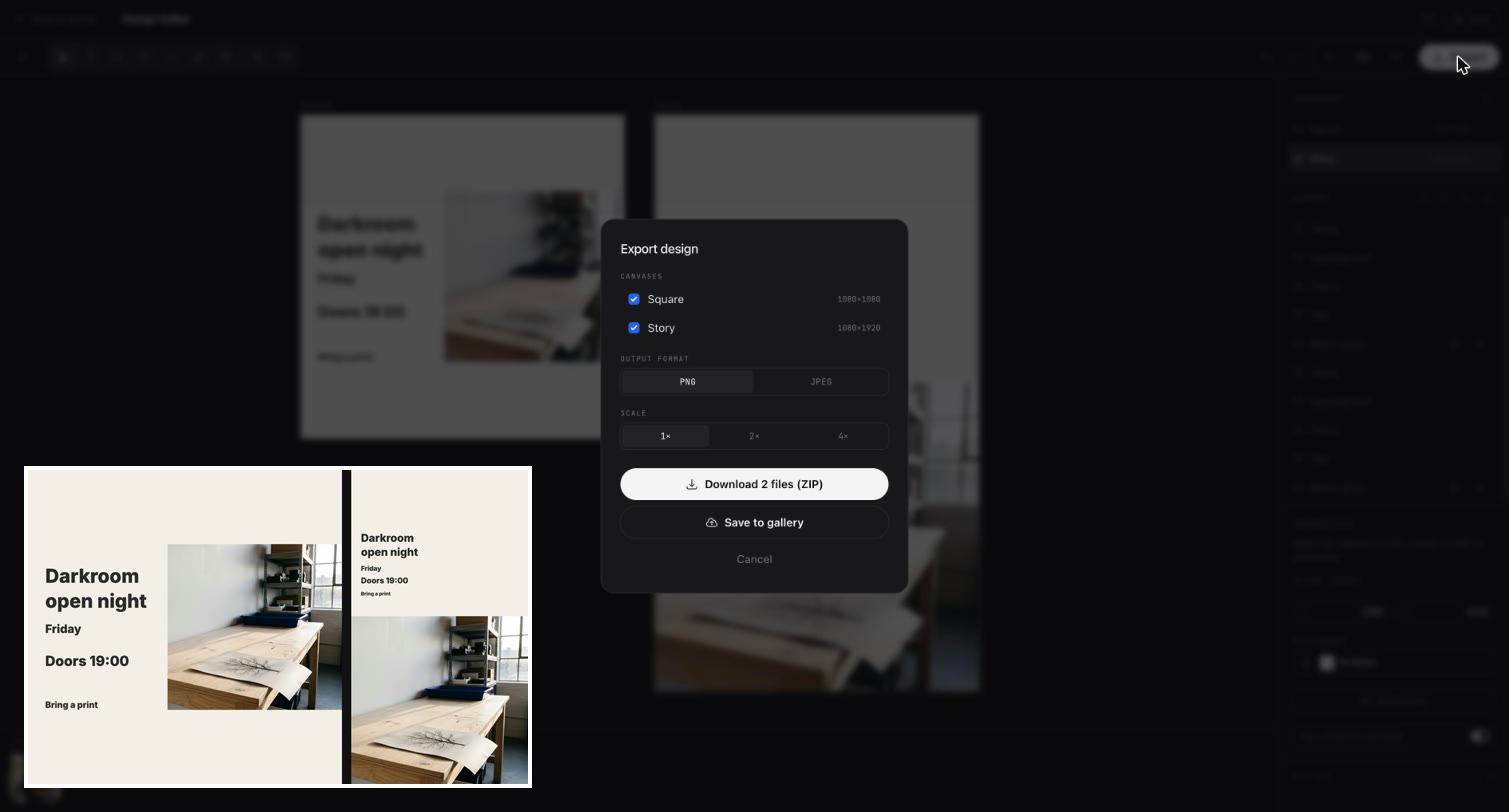
Check the downloaded files to see exactly what you are handing over. Open the ZIP and read “Doors 19:00” in each image. The square should be 1080 × 1080 and the Story 1080 × 1920. Look at the text edges at full size and again at a smaller viewing size; any clipping or difficult reading calls for a correction on that canvas and a fresh export.
In the export above, both files read “Doors 19:00”. The square came out at 1080 × 1080 and the Story at 1080 × 1920, and no line wraps or touches the edge of its box.
The Save to gallery option stores a flattened image output, so keep the saved design for later text changes. Put only the checked 19:00 exports in the delivery folder for whoever posts the announcement.
№ 11 · Design & typeAll stories
№ 10Photography
Make an AI photo essay from one imaginary roll of 36 frames. Spend the last wash at a fictional launderette, then edit your roll down to six.
№ 09Photography
AI headshots that look real still need the person’s approval. Use their feedback to make a team portrait they would choose for their own LinkedIn profile.
№ 08Design & AI tools review
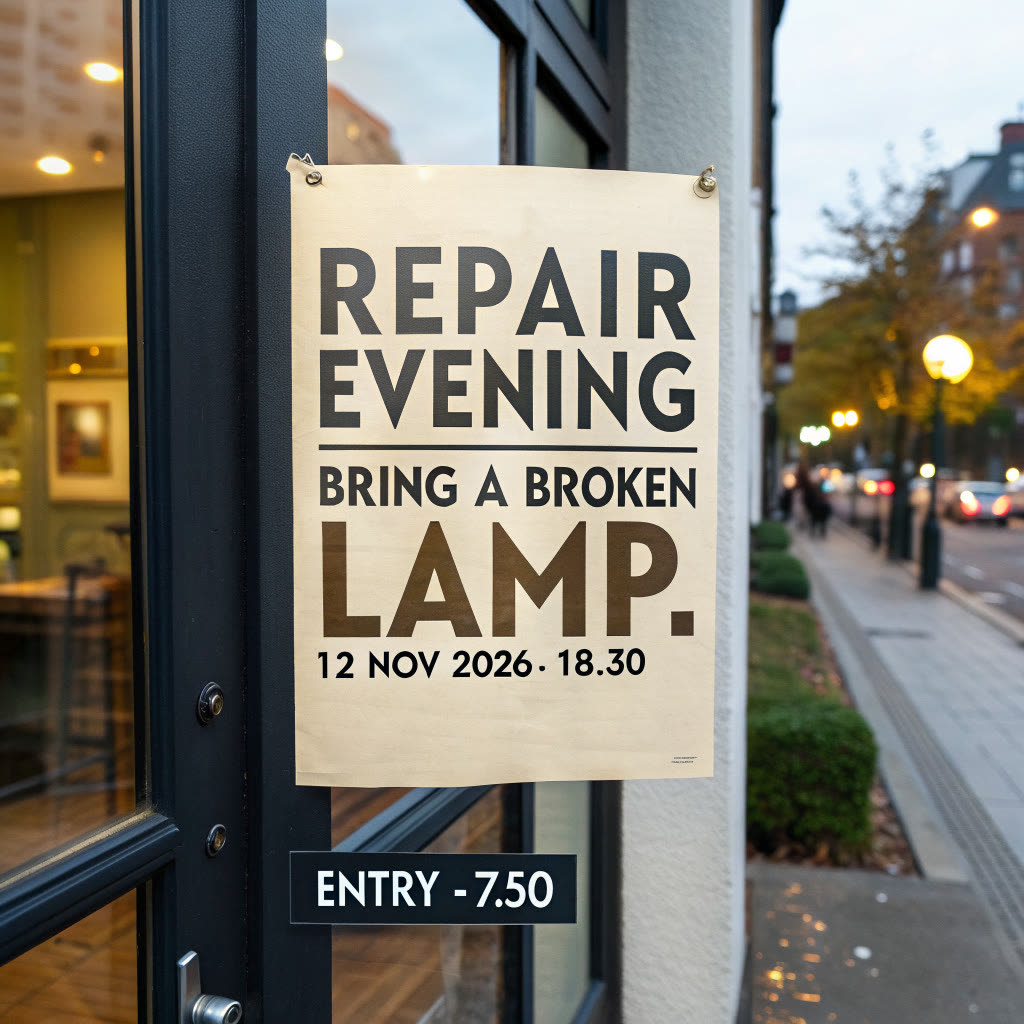
The best AI image generator for text has to get the small print right. We compare jar labels and shop posters, one letter at a time.